Recommended template for this guide
CSV data labels
Use this flexible template when your source file is CSV and the columns vary from job to job.
- Flexible fields for unknown columns
- Works for CSV and Excel imports
- Fastest start for mixed data
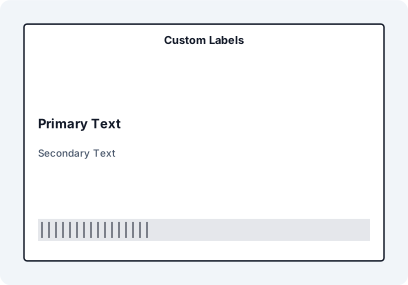
Step-by-Step: Print Labels from CSV
- Export your data from ERP, warehouse, or e-commerce system as CSV
- Validate headers and data structure
- Import the CSV file into LabelFlow Pro
- Bind columns to label elements
- Use Formula Builder for copy text such as Pack {{PACK_NO}} of {{PACK_TOTAL}}
- Use the Box 1 of 10 guide when one CSV row should print multiple labels
- Preview key records across the dataset
- Print the full batch
Example Workflow


CSV is the standard export format for ERP systems, warehouse platforms, and online stores. Instead of manually copying data into label templates, a CSV workflow allows you to generate labels directly from operational data in seconds and keep copy counters tied to the source table.
Where CSV Label Printing Is Used
- ERP systems – SAP, Oracle, Odoo exports
- Warehouses – inventory, shelf, and location labels
- E-commerce – Shopify, WooCommerce product labels
- Logistics – shipment, pallet, and package identification
Export Clean CSV Data
Export your dataset with headers in the first row. Each row should represent one label or one record. Avoid inconsistent formatting, missing values, and mixed data types within columns.
Import and Validate the File
Import the CSV file and check the preview table. Ensure columns are correctly detected and values appear as expected. This step prevents errors in large batch runs.
Bind Data to Label Elements
Map CSV columns such as SKU, Product Name, Barcode, or Location to text and barcode elements. Each row will automatically generate a unique label based on its data.
Handle Large Datasets Efficiently
CSV files can contain thousands of rows. LabelFlow Pro processes data locally in your browser, avoiding upload delays and keeping your data private while maintaining high performance.
Preview Across the Dataset
Check the first, middle, and last records. This ensures long text, edge cases, and unusual values do not break the label layout.
Print the Full Batch
Once verified, print the full dataset. The system processes rows sequentially and preserves CSV order, ensuring consistent output across the entire batch.
Why CSV Workflows Are More Efficient
- No manual copy-paste from spreadsheets
- Direct integration with ERP and warehouse exports
- Handles thousands of labels in a single run
- Local processing improves speed and data privacy
Common CSV Labeling Mistakes
- Missing or inconsistent column headers
- Mixed data formats within the same column
- Not validating large datasets before printing
- Testing only the first few rows instead of the entire dataset
FAQ
Can I print labels directly from a CSV file?
Yes. CSV files can be imported directly and used to generate labels without converting them to Excel.
Can CSV files handle large label batches?
Yes. CSV is ideal for large datasets and is commonly used for bulk label printing workflows.
Can CSV copy columns create Pack or Carton counters?
Yes. Columns named Pack/Packs, Cartons, or Pallets can expose formula aliases such as PACK_NO, CARTON_NO, and PALLET_NO for visible counter text. The Box 1 of 10 guide shows the same workflow with Excel and CSV-style columns.
Do I need to upload my CSV data?
No. Local processing allows CSV files to be handled directly in your browser, improving speed and data security.
Can I print CSV labels on thermal printers?
Yes. CSV-based labels can be printed on both standard and thermal printers once the layout is configured correctly.