Recommended template for this guide
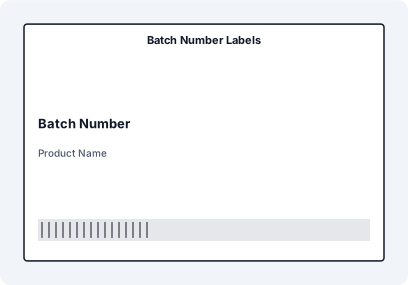
Batch labels with copy counters
Start with a batch label layout, import Excel or CSV data, then add Formula Builder text for package counters.
- Works with copy columns such as Boxes, Packs, Cartons, or Pallets
- Shows operators exactly which label belongs to each package
- Useful for manufacturing, packing, and shipping batches
The Mental Model: One Row, Many Labels
In a normal spreadsheet workflow, one row often means one printed label. Batch packaging is different. One row can represent a product, order, carton group, or production run that needs several physical labels. The copy column controls how many labels are printed for that row, while Formula Builder controls the human-readable counter printed on each copy.
- Prepare one row with your product, order, or shipment data.
- Add a copy column such as Boxes, Packs, Cartons, or Pallets.
- Import the file and map that column as the copy count.
- Open Formula Builder, dry-run the counter text, and insert it as a normal text object.
- Preview the first, middle, and last labels before printing the full batch.
Manufacturing: QTY 500, Boxes 10
A production row may say that 500 units are packed into 10 boxes. The label does not need to print 500 times. It needs one clear label for each box.
| SKU | Batch | QTY | Boxes |
|---|---|---|---|
| FG-2048 | LOT-0626 | 500 | 10 |
Use Formula Builder text: Box {{BOX_NO}} of {{BOX_TOTAL}}. The previews should read Box 1 of 10, Box 2 of 10, and so on through Box 10 of 10.
Packing: Packs 8
If the copy column is named Pack or Packs, Formula Builder can expose pack aliases automatically.
| Item | Order | Packs |
|---|---|---|
| Coffee Bags | SO-10441 | 8 |
Use Formula Builder text: Pack {{PACK_NO}} of {{PACK_TOTAL}}. The dry-run should show Pack 1 of 8 through Pack 8 of 8.
Shipping: Cartons 12
Shipping and fulfillment teams often need one order row to create multiple carton labels. A Cartons copy column keeps this explicit without duplicating the row 12 times in Excel.
| Order | Destination | Cartons |
|---|---|---|
| SO-99210 | Brussels DC | 12 |
Use Formula Builder text: Carton {{CARTON_NO}} of {{CARTON_TOTAL}}. For palletized shipments, use Pallet {{PALLET_NO}} of {{PALLET_TOTAL}}.
Copy/Paste Formula Examples
Box {{BOX_NO}} of {{BOX_TOTAL}}Pack {{PACK_NO}} of {{PACK_TOTAL}}Carton {{CARTON_NO}} of {{CARTON_TOTAL}}Pallet {{PALLET_NO}} of {{PALLET_TOTAL}}{{SKU}} - Box {{BOX_NO}}/{{BOX_TOTAL}}combines a spreadsheet field with copy counters.{{ceil(QTY / BOX_TOTAL)}} pcs per boxcombines multiple numeric fields and rounds an uneven split up.Label {{LABEL_NO}} of {{LABEL_TOTAL}}shows the position in the complete generated run.
Formula Builder can combine multiple columns, fixed text, arithmetic, and the helpers round(), ceil(), floor(), min(), max(), and abs(). Dry-run the expression against representative rows before inserting it.
How to Build the Label in LabelFlow Pro
- Import the Excel or CSV file and confirm the copy column is detected correctly.
- In Data Manager, choose Dynamic from Column and select Boxes, Packs, Cartons, Pallets, QTY, or the column that controls the number of copies.
- Select the template or label design that should receive the batch data.
- Map normal columns such as SKU, Order, Batch, Destination, or Tracking to text, QR, or barcode objects.
- Open Formula Builder from the sidebar under General Objects.
- Enter the formula text, dry-run it against sample rows, and confirm the first and last counter values.
- Insert the formula as a normal text object and position it where operators can read it easily.
- Preview the first, a middle, and the final generated copy—not only the first spreadsheet row.
- Print through the system dialog or download a PDF, then run one physical size and scan test before the full batch.
Troubleshooting
- The counter does not appear: confirm the row is printing multiple copies and that the formula object was inserted after dry-run.
- PACK_NO is missing: use a copy column named Pack or Packs. Use Cartons or Pallets for carton and pallet aliases.
- Every label says 1 of 1: the copy column may not be mapped as the copy count, or the row may only have one copy.
- The text is too long: test the widest value, increase the text box, or use shorter wording such as
B {{BOX_NO}}/{{BOX_TOTAL}}. - Operators find labels confusing: place the counter near the order, batch, or destination field, not hidden in a corner.
- Large jobs go wrong: dry-run and preview first, middle, and last records before printing the full run.
- The printed size is wrong: match the project dimensions to the printer stock and disable unwanted fit-to-page scaling.
- You edited preview data by mistake: Dataset Preview changes the browser working copy, not the original spreadsheet; reimport the source file to discard those edits.
FAQ
Do I need to duplicate rows in Excel?
No. Keep one row for the product, order, or shipment, then use a copy column to control how many labels that row creates.
What is the difference between BOX_NO and PACK_NO?
BOX_NO/BOX_TOTAL are general copy counters. PACK_NO/PACK_TOTAL appear when the copy column is named Pack or Packs. The same idea applies to Cartons and Pallets.
Can I use these formulas with CSV files?
Yes. The same workflow works with Excel and CSV as long as the column headers are clean and the copy column is mapped correctly.
Can the counter be printed as a barcode?
Formula Builder inserts normal text. For barcodes, map the barcode object to a stable data field such as SKU, tracking, order ID, or carton ID.
Can one formula use more than one spreadsheet column?
Yes. A formula can combine fields such as SKU, QTY, and BOX_TOTAL with fixed text and arithmetic. Use the dry run to check missing values, division, and the widest result before printing.