What this guide covers
This guide is specifically about encoding spreadsheet values as barcodes or 2D codes. For a broader first project with formulas, quantities, images, PDF and saved projects, use the complete Excel label tutorial.
Use the working barcode example
The sanitized workbook contains sample SKU and barcode values. Open the matching project or download both files to reproduce the workflow.
Prepare barcode data as text
Use one row per printed record and clear headers such as SKU, Barcode, Name and QTY. Format identifier columns as text so Excel does not remove leading zeroes or convert long values to scientific notation.
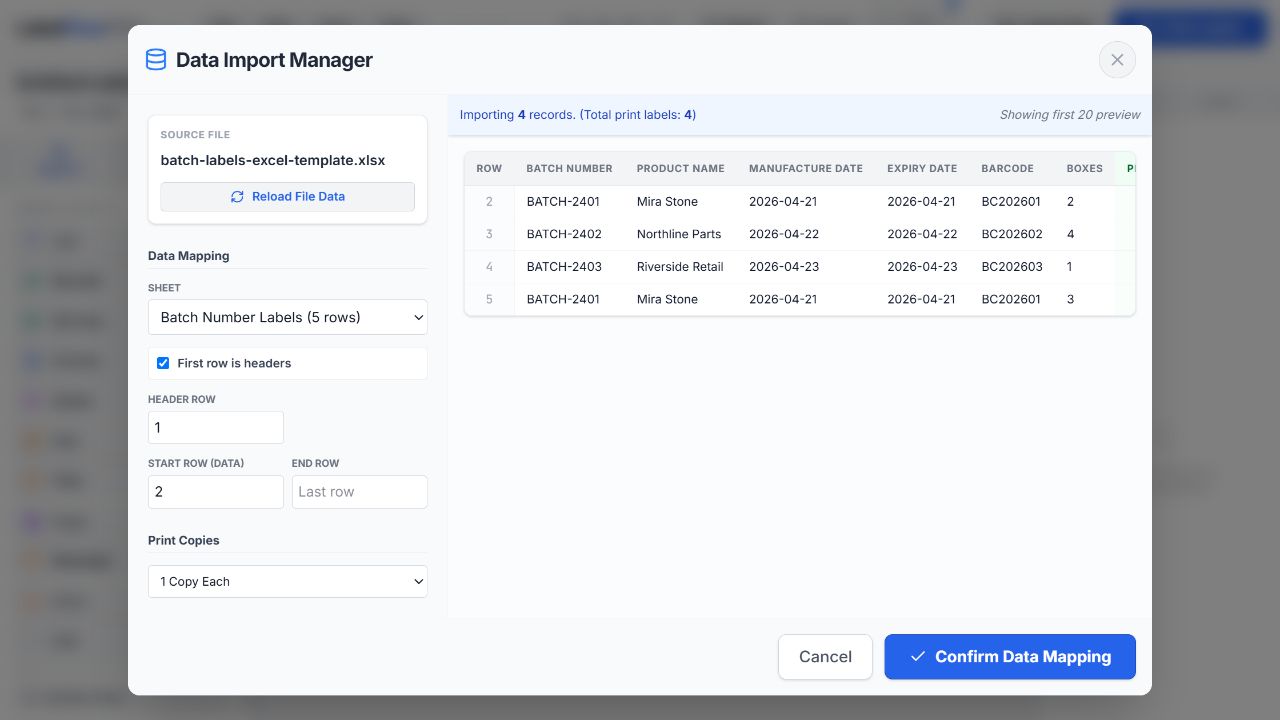
Import the correct worksheet and header range
Open the working template or start a project, import CSV, XLS or XLSX, select the worksheet that contains the label data, and confirm the header row. Check several rows in the data table before designing the label: one typical record, the longest value, and any ID that begins with zero.
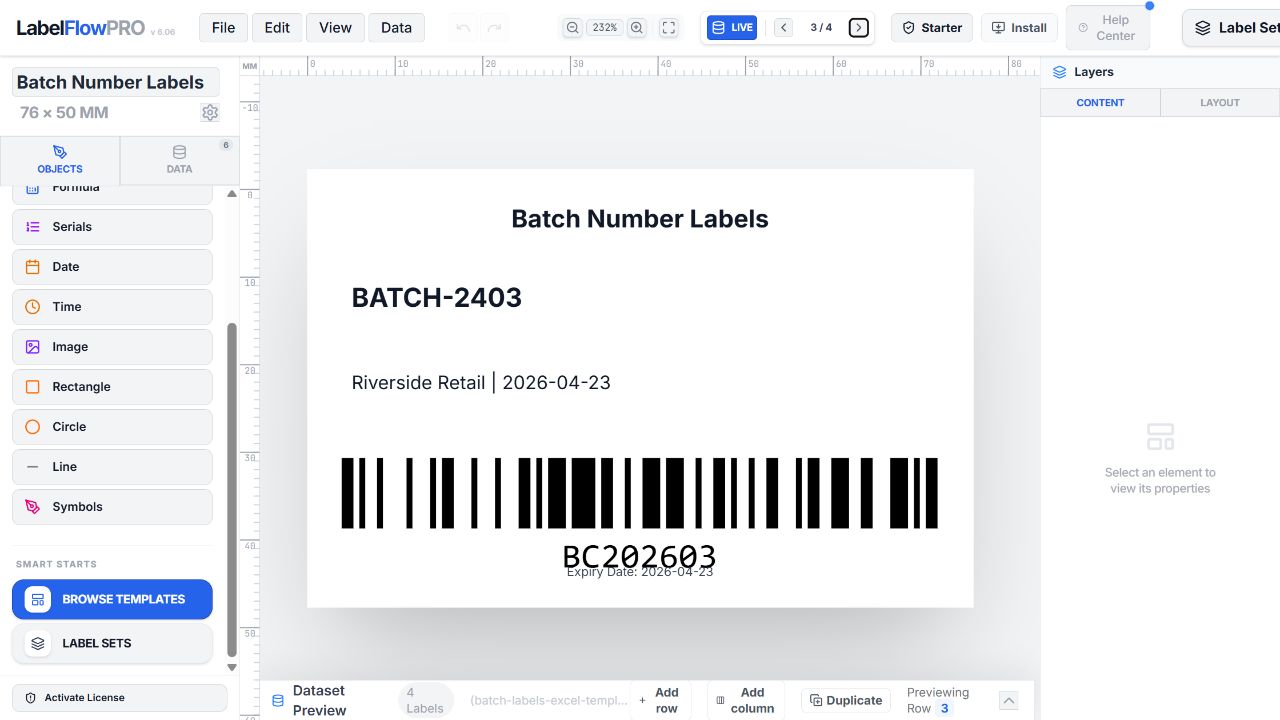
Set the physical label size
Choose the actual thermal roll size or A4/Letter stock before you place the barcode. Enter dimensions in millimetres or inches and select the printer DPI when thermal output needs dot-aware sizing. The printed symbol must have enough height and a clear white quiet zone on both sides; a barcode that is technically valid can still fail if the label is too small or the printer scales it down.
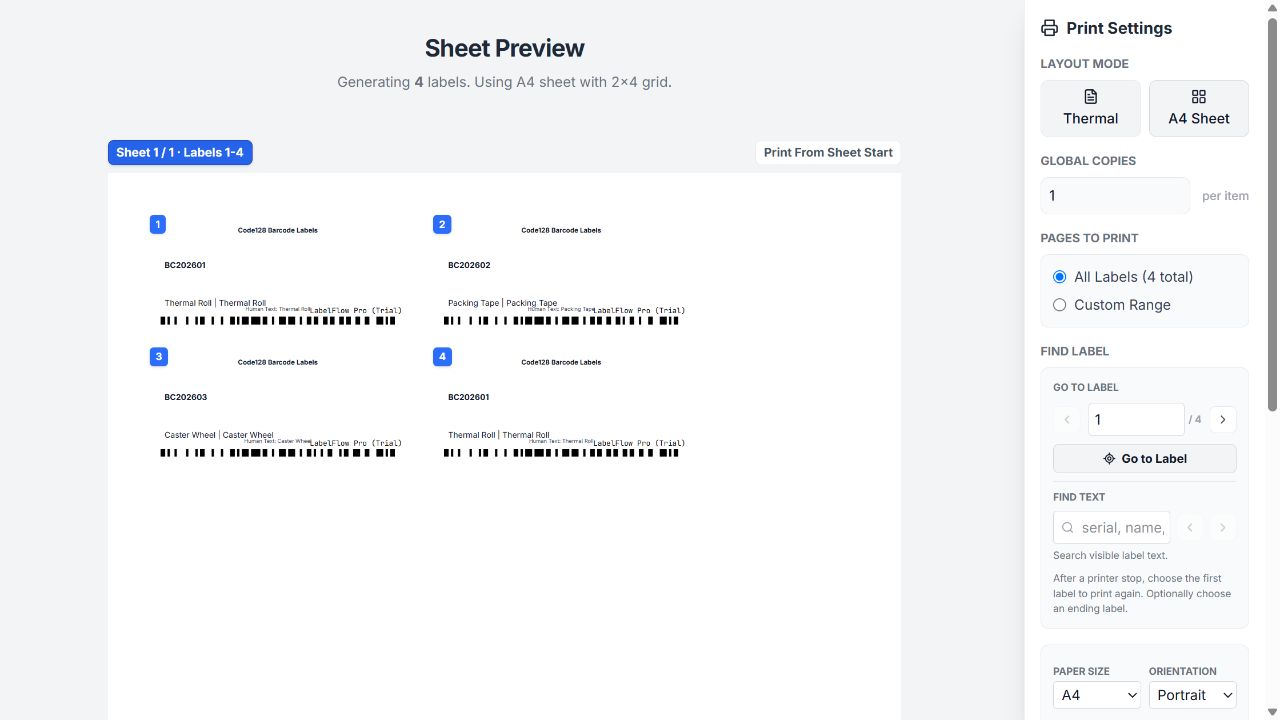
Bind the barcode and text fields
Add a barcode element, select the spreadsheet column as its dynamic value, then bind the human-readable name or SKU to text elements. Keep a readable identifier near the code so an operator can identify a label when a scanner is unavailable. The preview changes as you move between records; make sure it changes with the barcode column, not with fixed placeholder text.
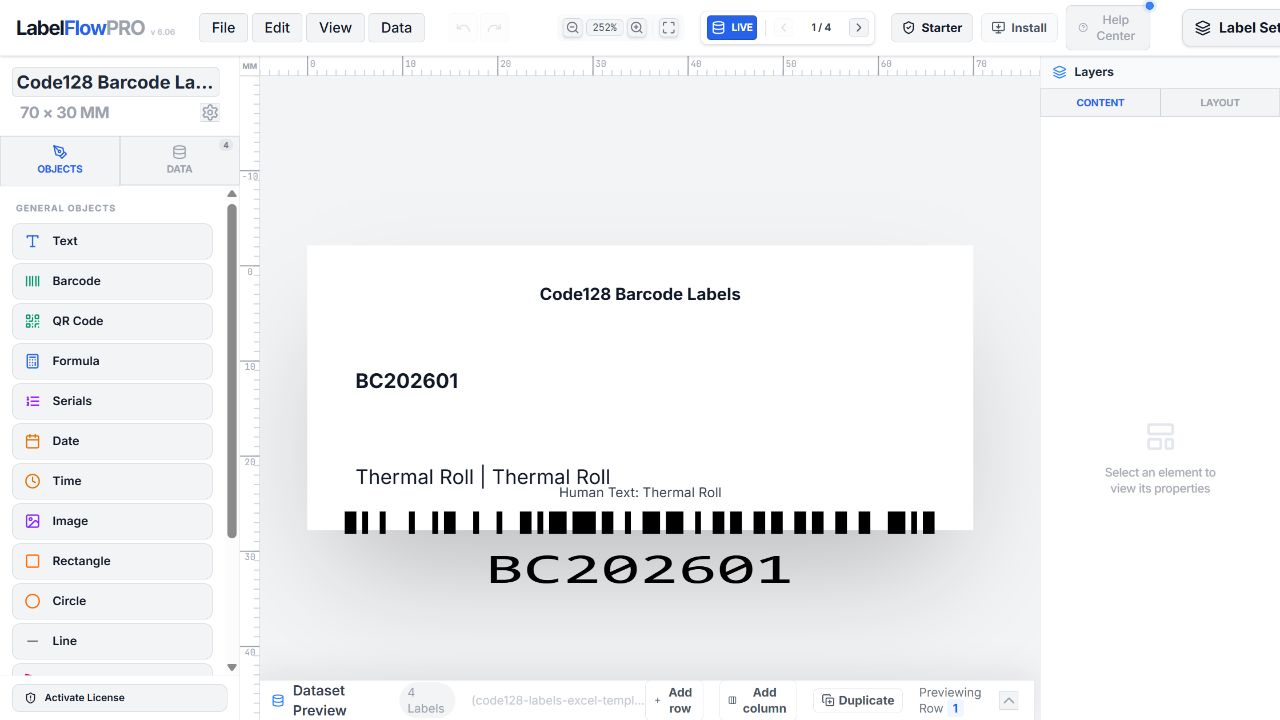
Choose and validate the code type
Select the appropriate option from the 23 available barcode and 2D code types. Code 128 is flexible for internal IDs, EAN/UPC formats are used for valid retail identifiers, and QR or Data Matrix can hold more data. The source value still has to satisfy the selected standard.
Preview, test-scan and print
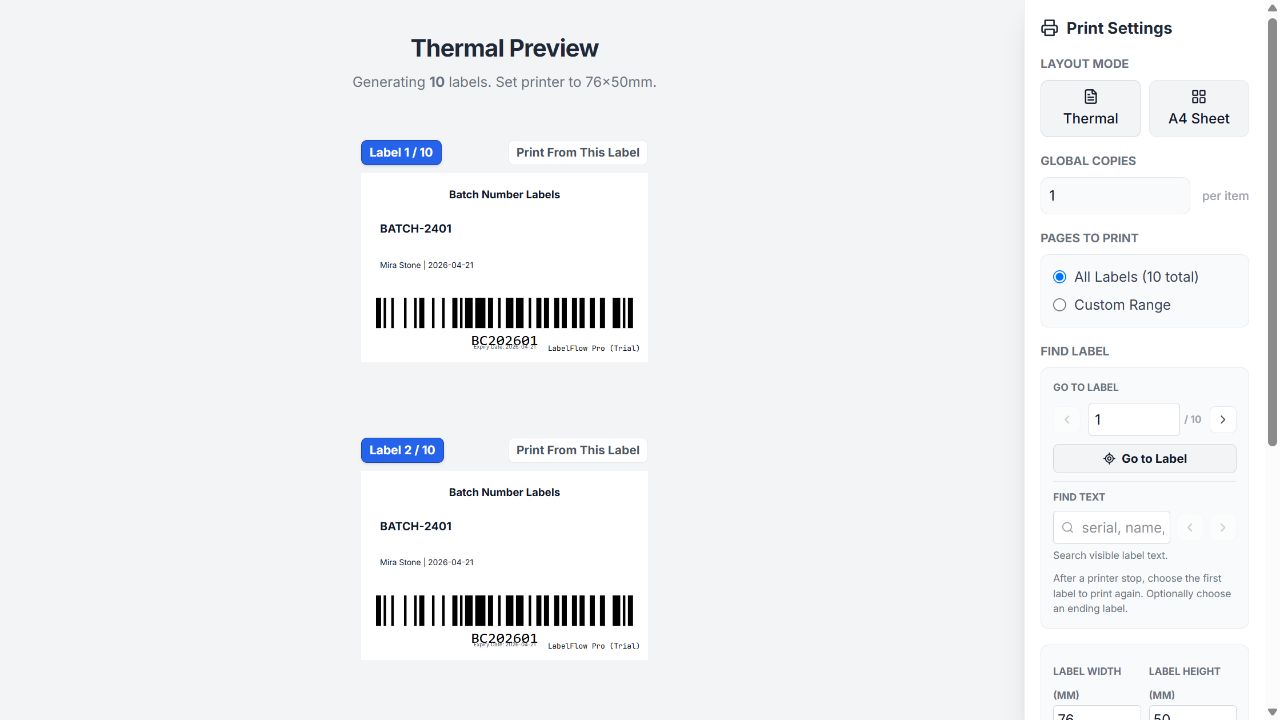
Inspect the shortest, longest and leading-zero values. Print a small sample at 100% scale, scan it with the device used in production, and only then print the full thermal or sheet batch or download a PDF. For a thermal printer, use the calibration suite first if the output is clipped, stretched, light, or inconsistently positioned.
Production checklist
- Identifier columns are stored as text
- Each row produces the intended code value
- Symbology matches the business standard
- Quiet zones are unobstructed
- A physical sample scans successfully
- Print scaling is set to 100%
Troubleshooting
| Problem | What to check |
|---|---|
| Leading zeroes disappear | Format the source column as text, then re-import the workbook. |
| A code does not render | Check length, character set and check-digit requirements for the selected symbology. |
| The printed code will not scan | Increase physical size, preserve the quiet zone, raise contrast and print at 100% scale. |
| Only one row repeats | Confirm the barcode value is bound to a column rather than entered as fixed text. |
Capability boundaries
What this workflow does
- Generate 23 barcode and 2D code types in the label workflow.
- Bind code and text elements to spreadsheet columns.
- Print through installed thermal or desktop printer drivers and create PDF output.
What to plan outside it
- LabelFlow Pro does not validate that a business owns a GTIN or other issued identifier.
- Printer-native ZPL deployment and managed print-server workflows are outside this browser-based workflow.
- Scanner reliability depends on data validity, physical size, media and printer quality.
Frequently asked questions
Can Excel generate production barcode labels on its own?
Excel is useful for storing values, but it does not provide this complete label-design, code-rendering, preview and print workflow by itself.
How many code types can I choose in LabelFlow Pro?
The label workflow currently offers 23 barcode and 2D code types. Choose the format that matches your data and operational standard.
Do I need barcode fonts?
No. LabelFlow Pro renders the barcode element directly, so a barcode font is not required.
Can I print to a thermal printer?
Yes. Print through the installed system driver after setting the exact label size, DPI and 100% scaling.