What makes this different from automatic serials
Here the workbook supplies contextual fields and the serial module supplies the unique counter. If you need only a sequence—with no row data—use the spreadsheet-free serial guide.
Download the combined workflow example
Use the sanitized workbook for row-level context and the project JSON for the matching label layout.
Prepare one row per source record
Create headers for stable context such as Product, Batch, Location and optional QTY. Do not pre-fill a serial column unless those serials already come from an authoritative system.
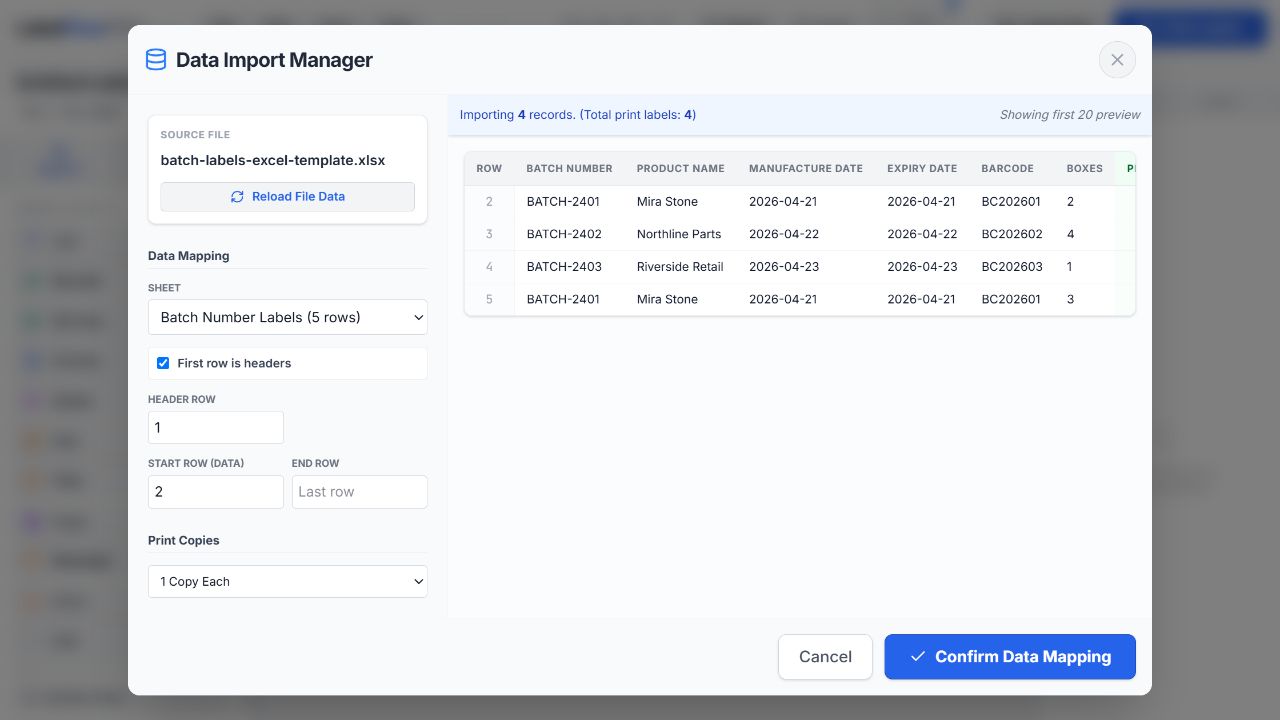
Import and verify the workbook
Select the correct sheet and header range, then compare several imported values with the original file. Fix blank headers, date conversions or leading-zero identifiers before continuing.
Bind the Excel context fields
Place text, image or code elements on the label and bind each one to the matching workbook column. Move between records to confirm the contextual data changes.
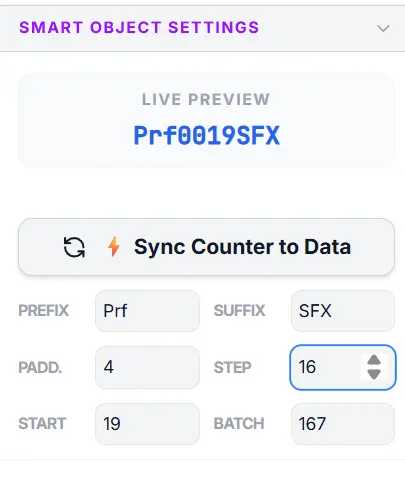
Configure the generated serial
Set the prefix, suffix, padding, start and step. Enable counter-to-data synchronization when the serial progression must stay aligned with imported rows and their print quantities.
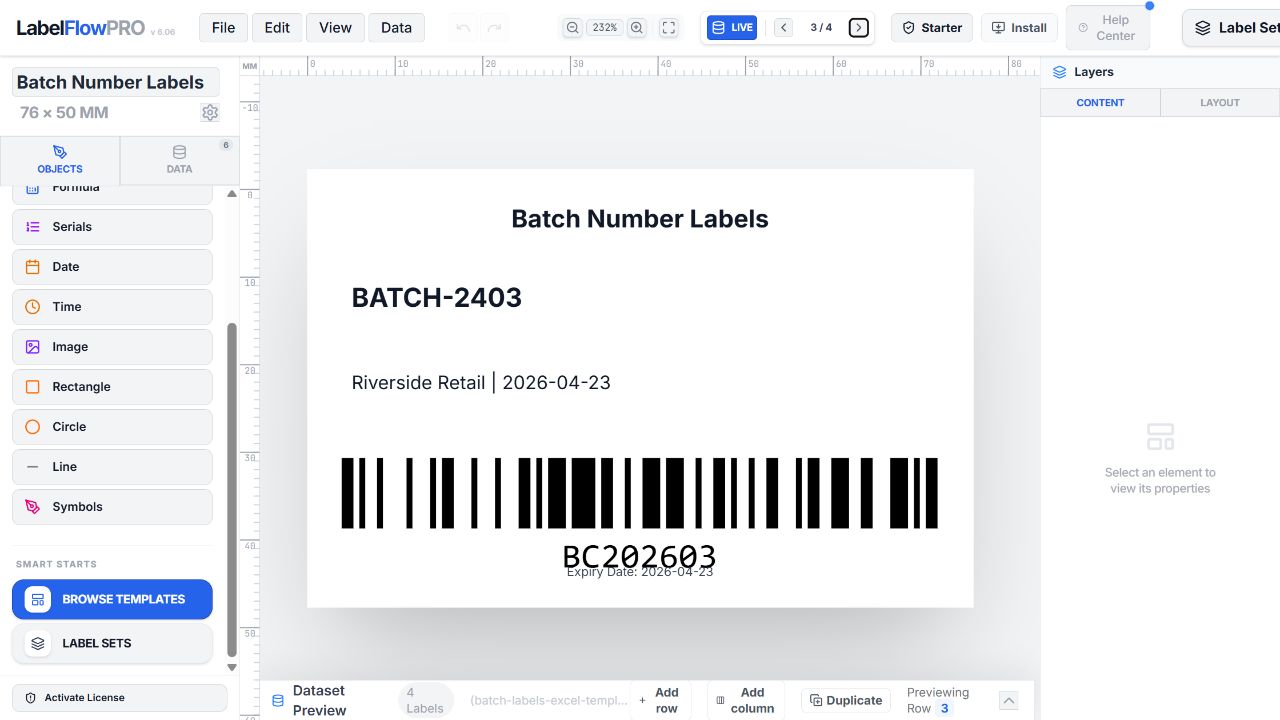
Preview row boundaries and quantities
Inspect the last label for one source row and the first for the next. This is the fastest way to detect whether the serial counter and spreadsheet context remain aligned.
Print, document the range and save
Print a small sample first, then the approved batch. Record the serial range associated with the workbook or work order and save the reusable project JSON.
Production checklist
- Workbook context fields are correct
- Serial start and step are approved
- Counter synchronization matches the intended row behavior
- Row quantities are verified
- Boundary records were previewed
- Printed serial range is recorded
Troubleshooting
| Problem | What to check |
|---|---|
| Serials drift from Excel rows | Review counter-to-data synchronization and per-row QTY settings. |
| A product row repeats too many times | Check the fixed quantity or bound QTY column before printing. |
| Leading zeroes disappear from imported fields | Store identifiers as text in Excel and re-import. |
| A rerun would overlap the prior range | Set a new approved start value or print only the documented recovery range. |
Capability boundaries
What this workflow does
- Combine imported row fields with an internally generated serial.
- Synchronize counters with data-driven label production.
- Preview individual records before thermal, sheet or PDF output.
What to plan outside it
- The workflow does not reserve serial ranges in an ERP or shared database.
- Operators must document printed and reprinted ranges.
- If Excel already contains authoritative serials, bind that column instead of generating a second sequence.
Frequently asked questions
Should the serial numbers be stored in Excel?
Not necessarily. Excel can provide product or batch context while the serial module generates the sequence. If an external system already owns the serials, import and bind those values instead.
What does Sync Counter to Data do?
It keeps generated counter behavior aligned with imported records, which is important when row changes or quantities affect the print sequence.
Can each Excel row print several serialized labels?
Yes. Configure the row quantity and verify the serial progression at row boundaries before printing.
How should I handle a partial reprint?
Document the failed range and preview only the replacement records so already-issued serials are not unintentionally duplicated.