What this guide covers
Use this workflow when every spreadsheet row needs its own QR code: product links, asset records, service instructions, locations, or short internal IDs. For a single sample QR code before you build a batch, start with the free static QR code generator.
Use the working QR example
The example has a QR element already placed on the label. Open it in the app to replace the sample rows, or download the matching workbook and project file.
Prepare stable QR data in Excel
Use one row for each label and one clear header for the QR value, such as QR URL, Asset ID, or Service Link. Paste the final destination, including https:// for web links. A static QR code carries the value you print; it cannot be changed afterward without printing a replacement label.
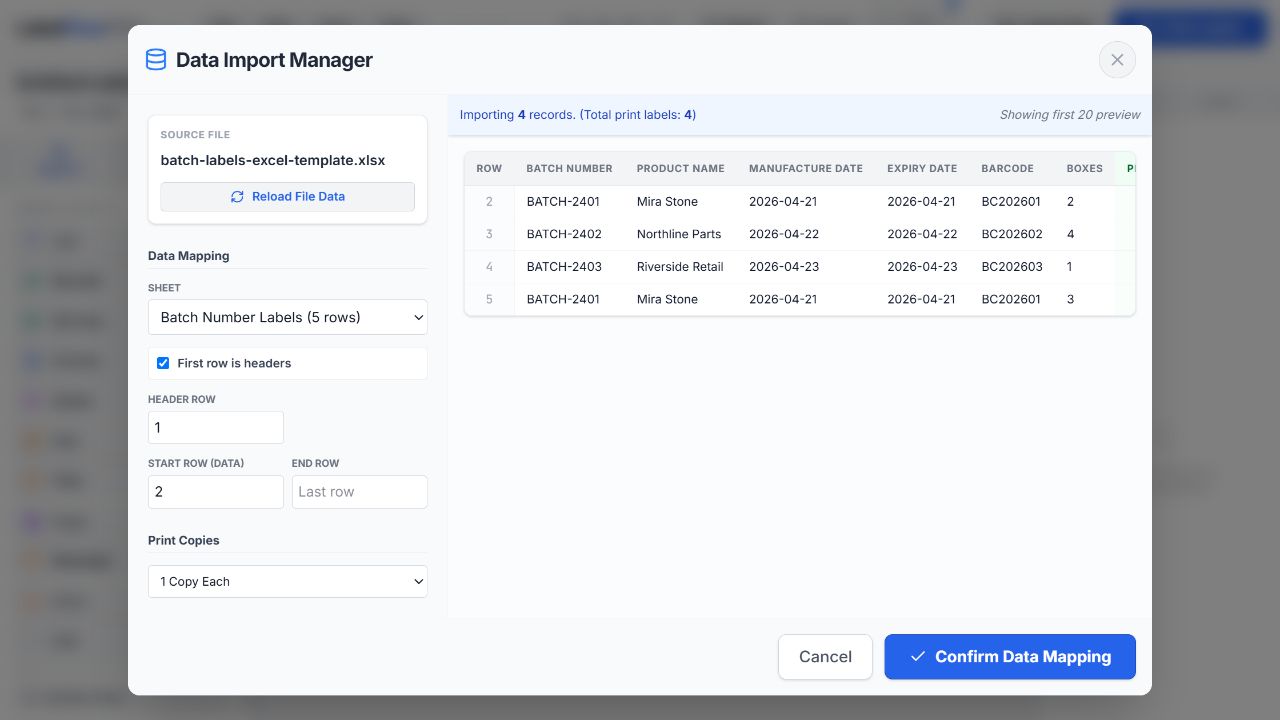
Import the worksheet and inspect real records
Import the XLSX, XLS, or CSV file, choose the correct worksheet, and confirm the header row. Review a typical row, the longest URL or text value, and a row with special characters before designing the label. This is where an incorrect worksheet or a pasted invisible space is cheapest to find.
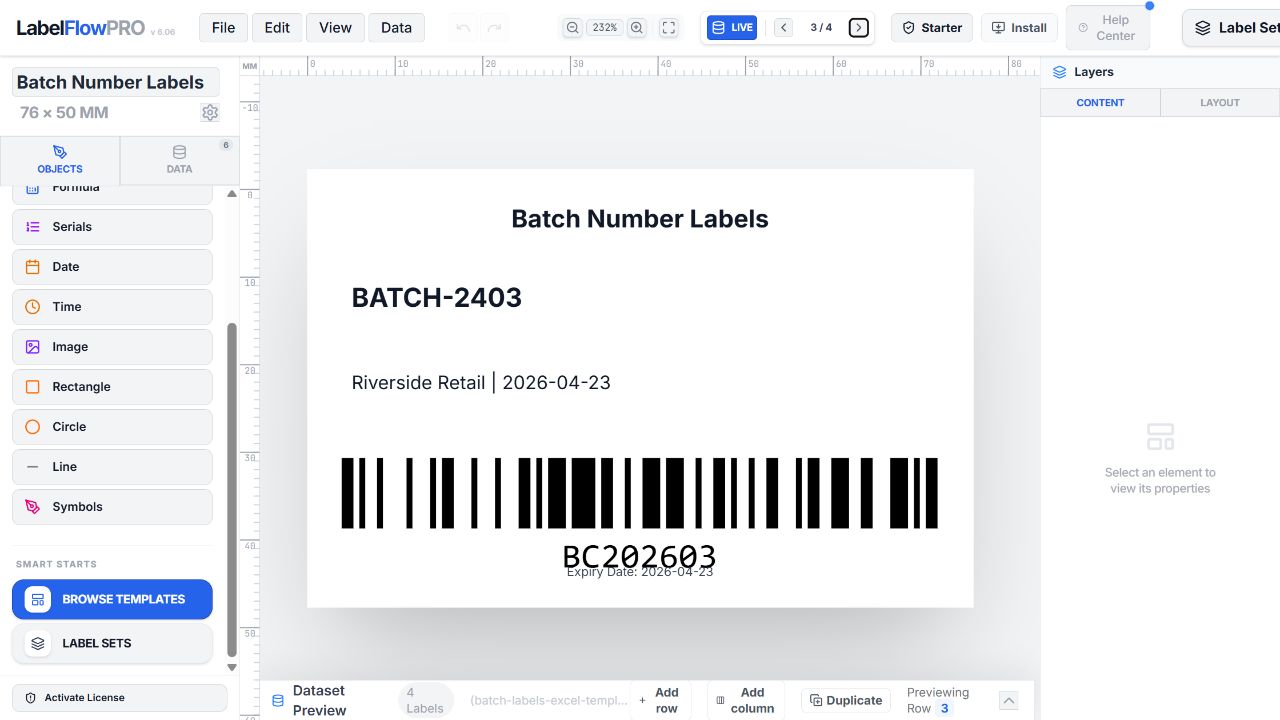
Bind the QR code element to the data column
Open the QR code element and select the imported QR column as its dynamic value. Add nearby readable text such as the product name, asset ID, or a short instruction. When you change records in the preview, both the QR symbol and the readable fields should update together.
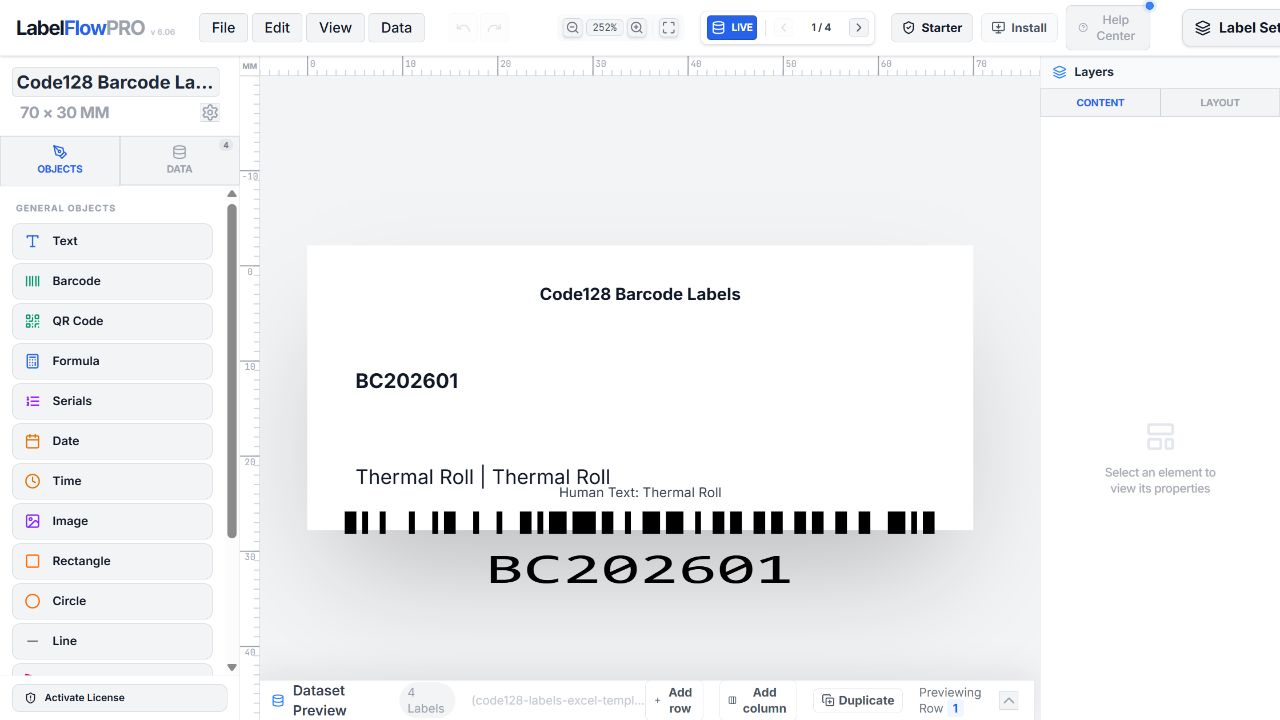
Give the QR code enough room to scan
Choose the physical label stock first, then size the QR code for the longest expected value. A long URL produces a denser symbol with smaller modules, so it needs more physical space than a short asset ID. Keep a clean white quiet zone around all four sides, use a dark code on a light background, and choose Medium error correction as a sensible starting point. Increase recovery only when the label may be damaged; higher recovery can also make a dense code larger.
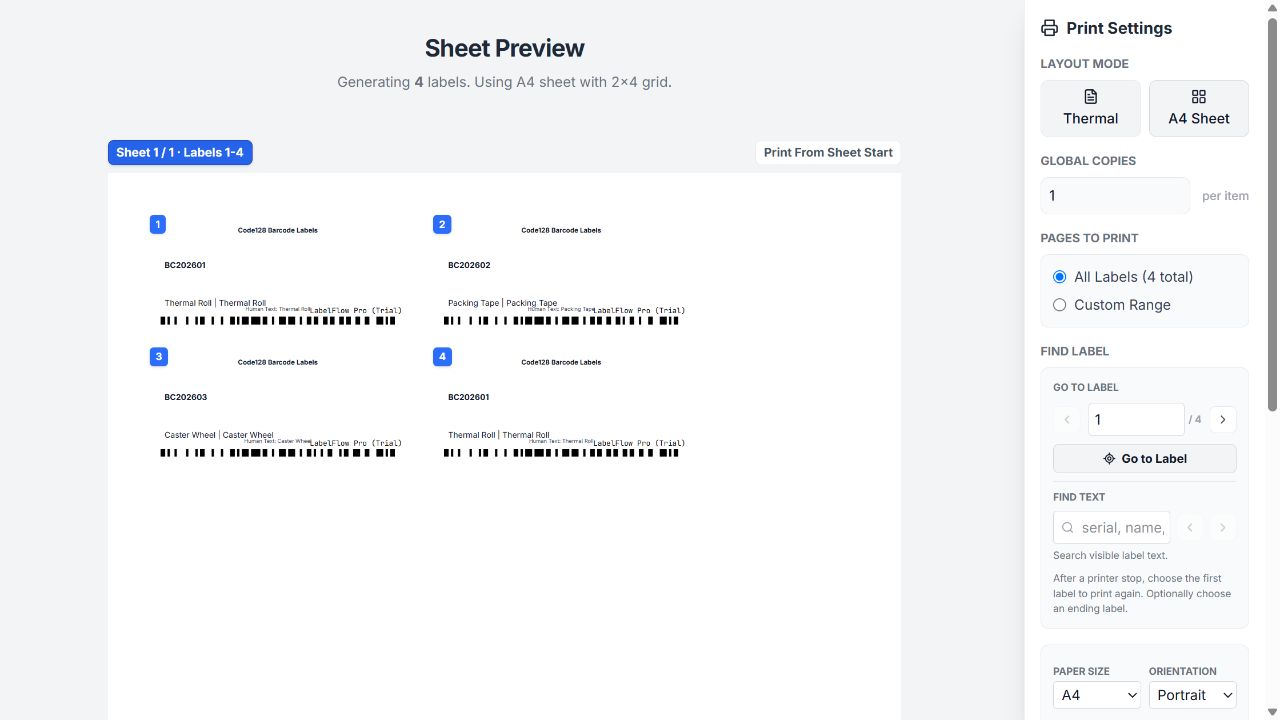
Check the records most likely to fail
Preview the longest URL, the most detailed text value, and any row with punctuation or a non-Latin character. Confirm that the code remains clear and that its readable companion text still fits. Do not approve the batch from the first row alone: that is often the shortest and easiest QR code in the file.
Print a sample, test-scan, then run the batch
Print a small sample on the final stock at 100% scale. Scan it with a phone and the production device, then test a typical value and the densest value. Check that the scan result is the exact intended URL or text. When the sample passes, print the batch through the installed thermal or desktop printer driver or create the PDF.
Production checklist
- Each row has a final, stable QR value
- The QR element is bound to the correct column
- The longest record remains large enough to scan
- White quiet space is clear on all four sides
- A physical sample scans on the production device
- Print scaling is set to 100%
Troubleshooting
| Problem | What to check |
|---|---|
| The QR code opens the wrong page | Check the imported column and test the printed sample. Static QR codes encode the exact value that was present when you printed them. |
| The longest row will not scan | Shorten the value where possible, increase the physical QR size, preserve the quiet zone, and test again on final stock. |
| The code is blurry or clipped | Print at 100% scale, avoid stretching a PNG, and calibrate the printer if its physical output is offset or soft. |
| Every label shows the same QR code | Confirm that the QR element is bound to the spreadsheet field rather than entered as fixed sample text. |
What a static QR code does and does not do
What this workflow does
- Creates one QR label per spreadsheet row.
- Encodes URLs, IDs, text, and other values directly into the printed code.
- Lets you preview, print, and create PDF output through installed system drivers.
What to plan outside it
- A static QR code cannot be changed after printing; update the label when its destination changes.
- The tool does not host, shorten, or manage the web page your QR code points to.
- Scanning reliability still depends on data density, physical size, media, contrast, and printer quality.
Frequently asked questions
Do static QR codes expire?
A static QR code has no expiry mechanism: it continues to return the exact value encoded in it. A QR code pointing to a web page will only remain useful while that destination continues to exist.
Can I print QR labels from a CSV file?
Yes. Import the CSV, verify its header row, and bind the QR element to the relevant value column in the same way as an Excel workbook.
What QR size should I use?
There is no one safe size for every value. Start with the final label size, leave a clear white border, and test the longest or densest value on the actual printer and stock.
Can I use a thermal printer?
Yes. Set the exact stock size and print at 100% scale. If the code looks soft, clipped, or uneven, calibrate the printer before the full batch.