Recommended template for this guide
Product labels from Excel
Use this for product names, SKU values, prices, and barcode-ready inventory labels.
- Product name and SKU fields
- Good for inventory updates
- Ready for batch printing
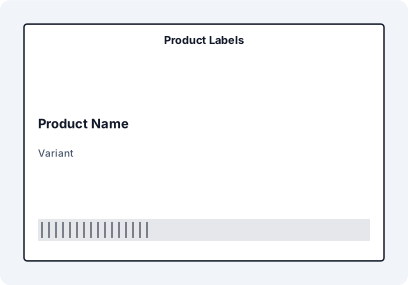
Step-by-Step: Print Inventory Labels from Excel
- Export your product or inventory list
- Structure key fields (SKU, Name, Price, Location)
- Import into label workspace
- Bind fields to label layout
- Preview batch output
- Print for products, shelves, or bins
Example Workflow


Many small businesses manage inventory in Excel instead of ERP systems. With the right labeling workflow, Excel becomes a powerful source for product, shelf, and warehouse labels.
Typical Inventory Data Structure
- SKU – unique product identifier
- Product Name – readable label text
- Price – optional retail display
- Location – bin, shelf, or warehouse zone
Export Inventory from POS or System
Export your product list from POS, ERP, or Excel. Ensure each product has a unique SKU.
Choose Label Type
Select between product labels (small stickers), shelf labels, or warehouse bin labels depending on use case.
Generate Barcode or QR Code
Use CODE128 for scanning systems or QR for internal tracking and mobile workflows.
Bind Excel Data
Each row becomes one label. SKU, product name, and price are mapped automatically without manual editing.
Handle Price Updates
Update your Excel file and reprint. No need to redesign labels when prices or products change.
Print at Scale
Generate hundreds or thousands of labels in one batch for stock updates, new products, or warehouse reorganization.
Why This Matters for Inventory
- Faster product onboarding
- Accurate stock identification
- Reduced manual errors
- Easy reprinting when data changes
Common Inventory Labeling Problems
- Manual label editing for each product
- Inconsistent barcode formats
- Outdated prices on labels
- Slow batch printing workflows
Excel vs Dedicated Label Workflow
- Excel alone cannot generate reliable labels
- Manual editing does not scale
- Data-driven workflows enable automation
- Batch printing saves time and reduces errors
FAQ
Can I use Excel as an inventory system?
Yes. Many small businesses use Excel for inventory, combined with labeling for physical tracking.
What barcode type should I use?
CODE128 is standard for inventory. QR codes are useful for extended data or mobile workflows.
Can I update labels when prices change?
Yes. Update the Excel file and reprint labels automatically.
How many labels can I print at once?
Batch workflows can handle hundreds or thousands of labels in one run.