Recommended template for this guide
Shipping labels from Excel
Use this for order exports, address columns, tracking values, and batch shipping-label printing.
- Address and tracking fields
- Good for order spreadsheets
- Designed for batch shipping workflows
Step-by-Step: Print Shipping Labels from Excel
- Export your orders or shipping data
- Structure address and shipment fields
- Import into label workspace
- Bind address and tracking data
- Preview label layout
- Print batch labels
Example Workflow


Shipping labels are typically generated from order exports. Instead of manually typing each address, a batch workflow allows you to print dozens or hundreds of labels directly from your spreadsheet.
Typical Shipping Data Structure
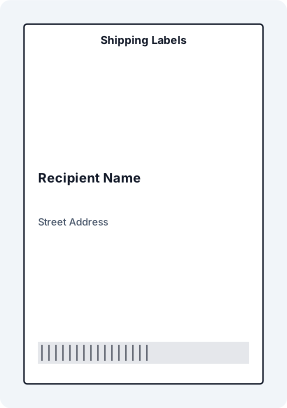
- Name – recipient
- Address Line – street and number
- City / ZIP – location data
- Country – required for international shipments
- Order ID / Tracking – barcode or reference
- Cartons / Pallets – copy columns for Formula Builder counters
- Box 1 of 10 logic – see the Formula Builder copy-counter guide
Export Orders from System
Export orders from Shopify, WooCommerce, ERP, or Excel. Ensure address fields are separated correctly.
Use Standard Label Size
Shipping labels are typically 100×150 mm (4x6 inches). This is supported by all major carriers and thermal printers.
Design Label Layout
Place address block, barcode, optional QR code, logo, and Formula Builder text for multi-piece labels. Keep layout clean for readability and scanning.
Bind Address Data
Map Excel columns to label fields. Each row becomes one shipping label automatically.
Add Tracking Barcode
Use CODE128 or carrier-specific format for order ID or tracking number.
Print in Batch
Send all labels in one run to a thermal printer for fast and reliable output. For multi-carton jobs, dry-run formulas such as Carton {{CARTON_NO}} of {{CARTON_TOTAL}} before the final print.
Why This Matters for Shipping Operations
- Faster order fulfillment
- Reduced manual errors
- Scalable batch processing
- Consistent label format
Common Shipping Label Problems
- Manual entry of addresses
- Formatting inconsistencies
- Misaligned labels on thermal printers
- Slow printing workflows
Excel vs Shipping Label Workflow
- Excel stores data but does not format labels
- Manual workflows do not scale
- Batch printing reduces time significantly
- Dedicated workflows improve consistency
FAQ
Can I print shipping labels directly from Excel?
Yes, using a label workflow that maps Excel data to a structured layout.
What size should shipping labels be?
Most carriers use 100×150 mm (4x6 inches).
Can I print multiple orders at once?
Yes, batch workflows allow printing all orders in one run.
Can shipping labels show Carton 1 of 10?
Yes. Use a Cartons copy column and Formula Builder aliases such as CARTON_NO and CARTON_TOTAL. The Box 1 of 10 guide explains the same pattern for cartons, packs, boxes, and pallets.
Do I need special printers?
Thermal printers are recommended, but standard printers can also be used.