Print Labels Without Excel
No Excel? No problem. Create and edit label data directly, add custom fields, duplicate rows, and use every current table field in Formula Builder. It is the faster path for short batches and manual jobs; Excel and CSV remain ready for larger datasets.
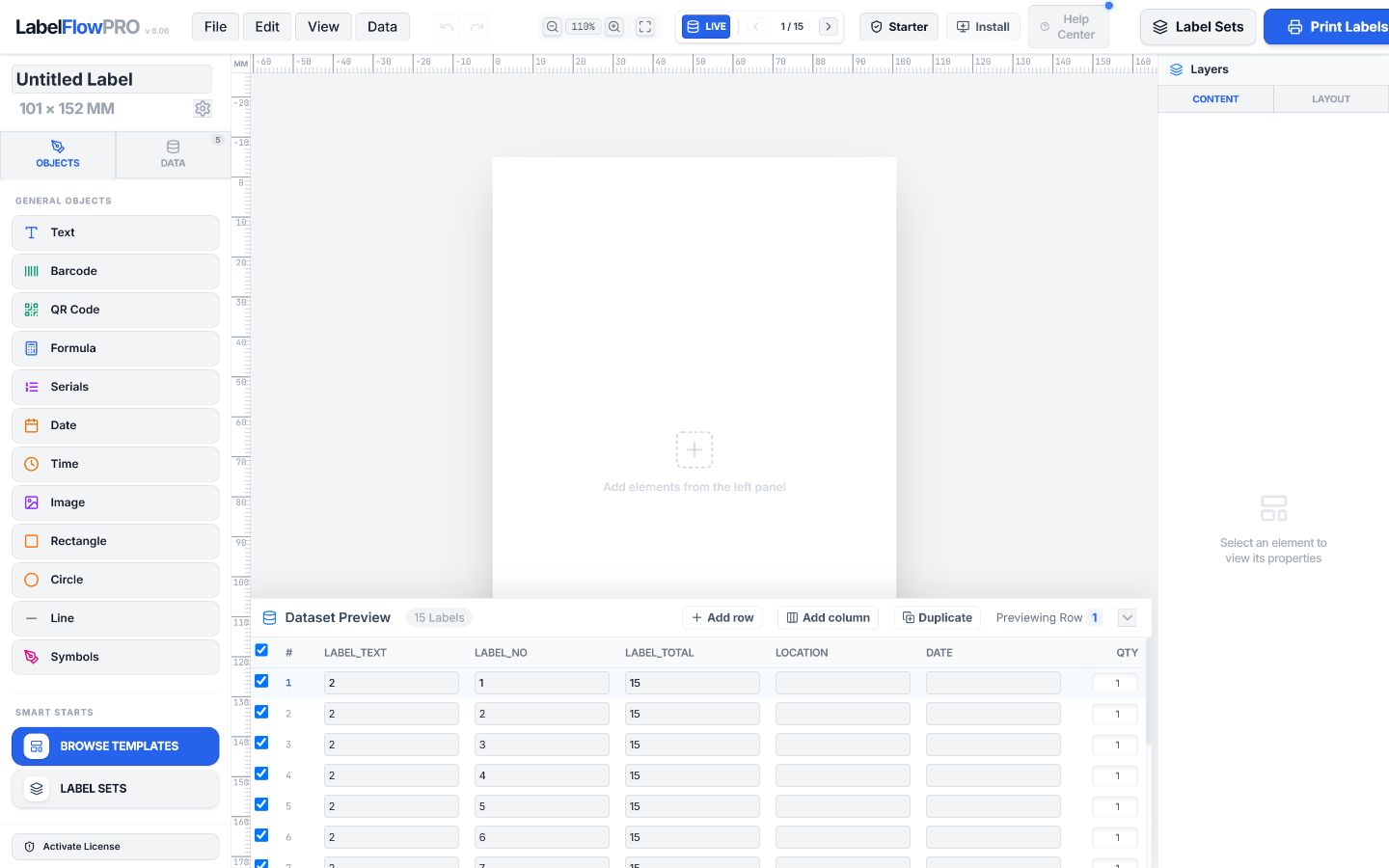
A small table for the jobs that do not need a spreadsheet
Use the same data-driven label engine as Excel and CSV imports, with a faster starting point for storage boxes, short packing runs, office labels, workshop bins, and one-off batches.
A built-in label table for practical manual work
Dataset Preview is not a replacement for Excel. It removes spreadsheet preparation from the jobs where a small editable table is quicker.
Create the dataset without a spreadsheet
Generate numbered packs, boxes, cartons, or pallets, or type one free-text value per label.
- Label, Pack, Box, Carton, and Pallet counters
- Automatic NO and TOTAL fields
- Free-text rows for storage, office, and workshop labels
- Counters recalculate when rows are added or removed
Edit the current dataset directly
Use Dataset Preview as a compact editor for imported data or manually created rows.
- Edit any visible cell in the browser working copy
- Add an empty row without reopening the source file
- Duplicate the genuinely selected row with all current values
- Enable, disable, or remove individual rows before printing
Add fields and use them in formulas
Create a custom field across every row, then insert it into Formula Builder with one click.
- New custom columns appear in the Data sidebar immediately
- Every current dataset field appears in Formula Builder
- Dry-run formulas with the selected row's actual values
- Use results in text, barcode, QR, and batch workflows
Choose the shortest path to the labels you need
| Job | Best starting point | Example |
|---|---|---|
| Numbered packaging labels | Manual numbered batch | Pack 1 of 10 through Pack 10 of 10 |
| A few different storage labels | One value per label | Books, Clothes, Tools, Documents |
| Large product or shipping run | Excel or CSV import | Hundreds of SKUs, addresses, or serial records |
| Recurring multi-label packaging job | Label Sets and packaging rules | Box, bag, item, and packing-list output |
Frequently asked questions
Can I create multiple labels without Excel?
Yes. Create a numbered or free-text manual batch, then edit its rows in Dataset Preview. Excel and CSV remain available for larger datasets.
Can I edit label data directly?
Yes. Every visible Dataset Preview cell is editable, and the selected row updates the live label preview.
Can I add custom columns?
Yes. Add Column creates a named empty field on every current row. Columns cannot yet be deleted, renamed, or reordered.
Does Duplicate copy all row values?
Yes. It copies the genuinely selected row and all of its current values. Generated manual counters are resequenced automatically.
Can table fields be used in formulas?
Yes. Formula Builder lists every current field for one-click insertion and dry-runs the result with the selected row's actual values.
Does editing the table modify my original XLSX file?
No. Dataset Preview edits a browser working copy and never writes changes back to the original spreadsheet.
Can I switch between manual data and Excel?
Yes. Both use the same design, formula, preview, and print workflow. Importing a file replaces the current working dataset.
When should I use Excel instead of the internal table?
Use the internal table for short batches and quick corrections. Excel or CSV is better for large, shared, or externally maintained datasets.