Recommended template for this guide
Safety labels from Excel
Start with a safety-label layout for warnings, inspection workflows, and controlled workplace signage.
- Clear warning layout
- Excel-driven batch updates
- Useful for ISO-style safety workflows
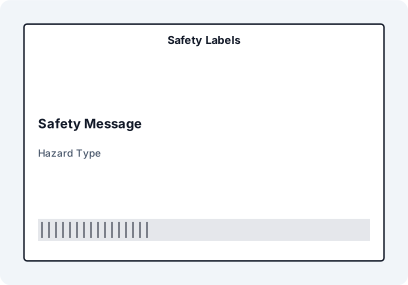
Step-by-Step: Print ISO 7010 Safety Labels from Excel
- Prepare your Excel file with equipment, location, or hazard data
- Select ISO 7010 safety symbols from a compliant SVG library
- Import the spreadsheet into LabelFlow Pro
- Bind hazard descriptions and identifiers to label elements
- Apply correct ISO colors and layout standards
- Preview and print the full batch of safety labels
Example Workflow

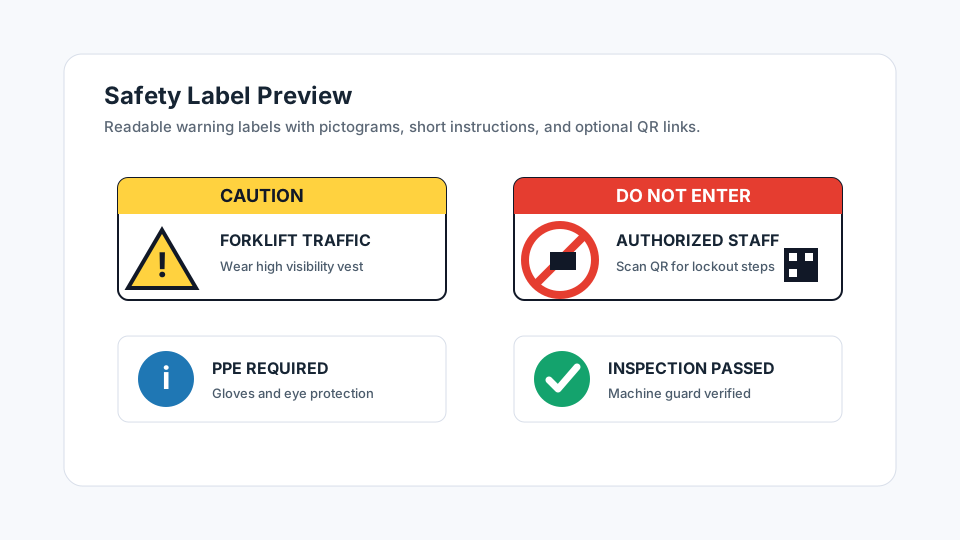
ISO 7010 safety labels are used in industrial environments, workshops, aviation, and public facilities. The challenge is not only printing labels, but ensuring that symbols, colors, and layout remain compliant and readable across all applications.
What Makes ISO 7010 Labels Different
- Standardized symbols – globally recognized safety pictograms
- Strict color rules – yellow (warning), blue (mandatory), red (prohibition)
- Vector quality required – symbols must scale without loss of clarity
- Consistent layout – symbol + text positioning must remain readable
Prepare Safety Data in Excel
Create a spreadsheet with relevant fields such as Location, Equipment ID, Hazard Type, and Instruction Text. Each row should represent one safety label to be printed.
Select ISO 7010 Symbols
Choose the correct ISO 7010 symbol for each hazard type. These include mandatory actions (blue), warnings (yellow), prohibitions (red), and emergency information (green). Always match the symbol to the real-world hazard.
Use SVG for Maximum Quality
ISO symbols should be used as vector graphics (SVG). This ensures sharp edges and consistent readability regardless of label size, printer resolution, or scaling.
Bind Excel Data to Label Elements
Import your Excel file and bind columns such as Hazard Type, Instruction Text, or Location directly to the label layout. This allows each label to reflect real operational data while maintaining a consistent design.
Apply ISO Color Standards
Ensure that colors follow ISO 7010 rules: yellow for warnings, blue for mandatory actions, red for prohibitions, and green for emergency information. Incorrect colors can make labels non-compliant or misleading.
Preview and Print the Batch
Preview multiple labels across your dataset to ensure symbol placement, text alignment, and color usage remain consistent. Once verified, print the full batch for deployment.
ISO 7010 Compliance Checklist
- Correct symbol selected for each hazard
- Proper color coding applied
- Vector (SVG) graphics used
- Readable text size and spacing
- Consistent layout across all labels
Why Excel Alone Is Not Enough for Safety Labels
- Excel cannot manage standardized symbol libraries
- Color compliance cannot be enforced in spreadsheets
- Manual layouts break consistency across multiple labels
- Vector scaling and print quality cannot be controlled
FAQ
What is ISO 7010?
ISO 7010 is an international standard for safety signs and symbols used to communicate hazards and instructions in workplaces and public environments.
Can I use SVG symbols for safety labels?
Yes. SVG is the preferred format because it maintains sharp edges and consistent quality at any size.
Can I print ISO 7010 labels from Excel data?
Yes. Excel provides the structured data, while a label tool applies symbols, layout, and compliance rules to generate the final labels.
Do ISO safety labels require specific colors?
Yes. ISO 7010 defines strict color rules for warnings, mandatory actions, prohibitions, and emergency information. These should always be followed.