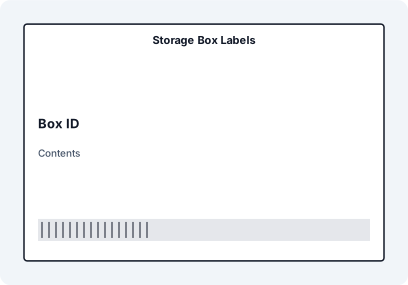
The Better Way to Print Storage Box Labels Template for Excel
Storage Box Labels Template for Excel gives teams a practical starting point for warehouse bins, stock rooms, receiving areas, and cycle-count workflows. The workbook is intentionally structured around Box ID, Contents, Storage Zone, Owner, QR Code, so import mapping stays visible, audit-friendly, and easy to update before a production print run. For multi-piece jobs, Formula Builder can show clear copy text such as Box 1 of 10, Carton 2 of 8, or Pallet 1 of 3 when the imported data includes copy columns.
Instant Setup
Don't waste time formatting Word tables. This template is pre-configured with the correct margins and barcode fields.
Batch Processing
Link your Excel data and print 1 or 10,000 labels with one click. Every label is uniquely populated from your spreadsheet.
Vector Quality
Output high-resolution PDF or direct-to-printer data. Barcodes remain 100% sharp for perfect scanner reliability.
How to Use this Storage Box Labels Template for Excel Guide
- Open the XLSX sample and confirm the headers: Box ID, Contents, Storage Zone, Owner, QR Code.
- Paste or import production rows with one physical label per row.
- Format IDs, codes, dates, and scan values before importing, especially QR Code.
- Open the matching LabelFlow Pro JSON layout and verify each mapped field.
- Preview the longest real values, then print a short test batch on the final stock.
Suggested Excel Columns
- Box ID - reference value used for lookup or scanning
- Contents - mapped field used by the template layout and workbook
- Storage Zone - warehouse location field used for sorting and scanning
- Owner - mapped field used by the template layout and workbook
- QR Code - QR code source value such as a URL, ID, or reorder link
Keep these fields aligned with the template workbook and the mapped fields in the LabelFlow Pro layout. Clean structure keeps imports predictable and reduces manual cleanup before printing.
Clean the spreadsheet
Use location codes that match your warehouse logic, not temporary notes from a picking sheet. Keep Box ID, Contents, Storage Zone as separate columns so sorting, filtering, and reprints remain simple.
Protect mapped fields
The layout is already mapped to the workbook headers. If a column name changes, update the matching text, barcode, or QR element before importing new rows.
Check operational readability
Warehouse labels should be readable from the normal picking distance and still scan when placed on bins, racks, or cartons. Review Box ID with the longest realistic value and adjust font size, wrapping, or element width before the final batch.
Approve the print run
Print on the actual label stock and printer. Confirm margins, scaling, adhesive stock, and scanner readability at the distance operators actually use before releasing the batch.
Common Mistakes
- Reusing old bin codes after a warehouse move or slotting change.
- Letting SKU, quantity, or location columns come from different export dates.
- Printing labels before checking the longest location and product names on the final stock.
When This Template Is Useful
- Receiving and relabeling incoming stock
- Cycle counts and physical inventory audits
- Bin, shelf, rack, aisle, or storage identification
- Scanner-based picking and replenishment workflows
The mapped workbook keeps physical labels aligned with the inventory system, which makes reprints and audits less fragile.
Which fields are included?
The XLSX file, JSON template, and page field list all use: Box ID, Contents, Storage Zone, Owner, QR Code.
Can I customize it for my workflow?
Yes. Add the column in Excel, then add or update the matching text, barcode, or QR element in the layout using the same header name.
What should I verify before printing?
Check bin logic, SKU accuracy, barcode or QR readability, label stock, and scan distance before printing the full batch.
Can this template use Formula Builder counters?
Yes. Keep the Excel headers aligned with the mapped layout, then add a Formula Builder text object for counters such as Box 1 of 10, Pack 1 of 10, Carton 1 of 8, or Pallet 1 of 3.