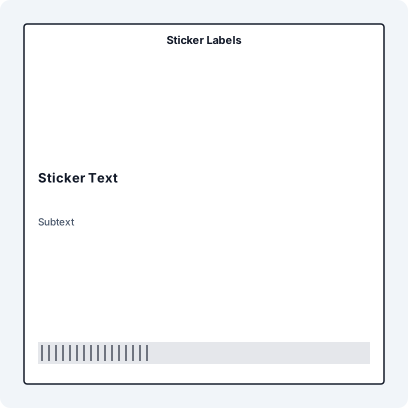
The Better Way to Print Sticker Labels Template for Excel
Sticker Labels Template for Excel gives teams a practical starting point for product, shelf, price, packaging, apparel, jar, candle, coffee, and nutrition labels. The workbook is intentionally structured around Sticker Text, Subtext, Category, QR Code, so import mapping stays visible, audit-friendly, and easy to update before a production print run.
Instant Setup
Don't waste time formatting Word tables. This template is pre-configured with the correct margins and barcode fields.
Batch Processing
Link your Excel data and print 1 or 10,000 labels with one click. Every label is uniquely populated from your spreadsheet.
Vector Quality
Output high-resolution PDF or direct-to-printer data. Barcodes remain 100% sharp for perfect scanner reliability.
How to Use this Sticker Labels Template for Excel Guide
- Open the XLSX sample and confirm the headers: Sticker Text, Subtext, Category, QR Code.
- Paste or import production rows with one physical label per row.
- Format IDs, codes, dates, and scan values before importing, especially QR Code.
- Open the matching LabelFlow Pro JSON layout and verify each mapped field.
- Preview the longest real values, then print a short test batch on the final stock.
Suggested Excel Columns
- Sticker Text - mapped field used by the template layout and workbook
- Subtext - mapped field used by the template layout and workbook
- Category - mapped field used by the template layout and workbook
- QR Code - QR code source value such as a URL, ID, or reorder link
Keep these fields aligned with the template workbook and the mapped fields in the LabelFlow Pro layout. Clean structure keeps imports predictable and reduces manual cleanup before printing.
Clean the spreadsheet
Use approved product, price, UPC, batch, and customer-facing copy before importing rows. Keep Sticker Text, Subtext, Category as separate columns so sorting, filtering, and reprints remain simple.
Protect mapped fields
The layout is already mapped to the workbook headers. If a column name changes, update the matching text, barcode, or QR element before importing new rows.
Check operational readability
The label should make product name, price or variant, and code information easy to scan visually. Review Sticker Text with the longest realistic value and adjust font size, wrapping, or element width before the final batch.
Approve the print run
Print on the actual label stock and printer. Confirm margins, scaling, adhesive stock, and UPC, barcode, or QR readability at checkout or receiving before releasing the batch.
Common Mistakes
- Printing prices or promo flags that do not match the POS or approved product sheet.
- Mixing customer-facing copy with internal notes in the same field.
- Crowding packaging text until code fields or batch details become hard to read.
When This Template Is Useful
- Retail shelf and price updates
- Product packaging and small business labels
- UPC, QR, batch, or reorder-code labeling
- Seasonal product description and price changes
Separated product, price, and code fields make updates faster and reduce rework when product data changes.
Which fields are included?
The XLSX file, JSON template, and page field list all use: Sticker Text, Subtext, Category, QR Code.
Can I customize it for my workflow?
Yes. Add the column in Excel, then add or update the matching text, barcode, or QR element in the layout using the same header name.
What should I verify before printing?
Check product copy, price fields, UPC or QR values, batch data, label stock, and finished contrast.