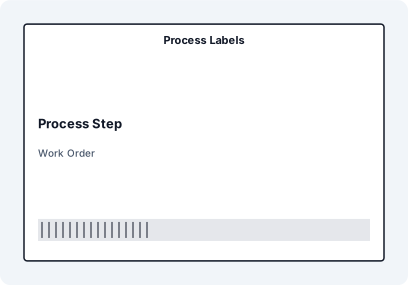
The Better Way to Print Process Labels Template for Excel
Process Labels Template for Excel gives teams a practical starting point for shop-floor traceability, inspection, maintenance, calibration, safety, and work-order labels. The workbook is intentionally structured around Process Step, Work Order, Station, Status, Operator, Barcode, so import mapping stays visible, audit-friendly, and easy to update before a production print run.
Instant Setup
Don't waste time formatting Word tables. This template is pre-configured with the correct margins and barcode fields.
Batch Processing
Link your Excel data and print 1 or 10,000 labels with one click. Every label is uniquely populated from your spreadsheet.
Vector Quality
Output high-resolution PDF or direct-to-printer data. Barcodes remain 100% sharp for perfect scanner reliability.
How to Use this Process Labels Template for Excel Guide
- Open the XLSX sample and confirm the headers: Process Step, Work Order, Station, Status, Operator, Barcode.
- Paste or import production rows with one physical label per row.
- Format IDs, codes, dates, and scan values before importing, especially Barcode.
- Open the matching LabelFlow Pro JSON layout and verify each mapped field.
- Preview the longest real values, then print a short test batch on the final stock.
Suggested Excel Columns
- Process Step - mapped field used by the template layout and workbook
- Work Order - reference value used for lookup or scanning
- Station - mapped field used by the template layout and workbook
- Status - mapped field used by the template layout and workbook
- Operator - mapped field used by the template layout and workbook
- Barcode - barcode source value; format as Text in Excel
Keep these fields aligned with the template workbook and the mapped fields in the LabelFlow Pro layout. Clean structure keeps imports predictable and reduces manual cleanup before printing.
Clean the spreadsheet
Confirm work order, part, lot, status, and operator fields from the current production source. Keep Process Step, Work Order, Station as separate columns so sorting, filtering, and reprints remain simple.
Protect mapped fields
The layout is already mapped to the workbook headers. If a column name changes, update the matching text, barcode, or QR element before importing new rows.
Check operational readability
Operators should be able to identify status, due date, hold area, or next action without opening another file. Review Process Step with the longest realistic value and adjust font size, wrapping, or element width before the final batch.
Approve the print run
Print on the actual label stock and printer. Confirm margins, scaling, adhesive stock, and barcode readability near the workstation or inspection area before releasing the batch.
Common Mistakes
- Printing status labels before inspection or QC results are final.
- Using ambiguous hold, pass, fail, or in-process wording.
- Leaving maintenance or calibration due dates in mixed formats.
When This Template Is Useful
- Work orders and in-process tracking
- QC, inspection, hold, and rejected-material areas
- Maintenance and calibration reminders
- Safety, warning, and process labels
Clear status fields help operators understand the next action without depending on a separate spreadsheet.
Which fields are included?
The XLSX file, JSON template, and page field list all use: Process Step, Work Order, Station, Status, Operator, Barcode.
Can I customize it for my workflow?
Yes. Add the column in Excel, then add or update the matching text, barcode, or QR element in the layout using the same header name.
What should I verify before printing?
Verify work order, part or equipment ID, status, date fields, label durability, and any local quality procedures.