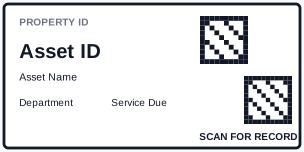
The Better Way to Print Asset Label with DataMatrix and QR Template for Excel
Asset Label with DataMatrix and QR Template for Excel gives you a higher-quality starting point for asset labels where a compact machine-readable ID and a human-friendly lookup QR code need to fit on a small durable tag. It is designed as a complete package: spreadsheet headers, mapped layout fields, scannable code elements, thumbnail preview, and SEO page content all describe the same real workflow. Formula Builder can add practical batch text such as Pack 1 of 10 when the imported data uses quantity or copy columns.
Instant Setup
Don't waste time formatting Word tables. This template is pre-configured with the correct margins and barcode fields.
Batch Processing
Link your Excel data and print 1 or 10,000 labels with one click. Every label is uniquely populated from your spreadsheet.
Vector Quality
Output high-resolution PDF or direct-to-printer data. Barcodes remain 100% sharp for perfect scanner reliability.
How to Use this Asset Label with DataMatrix and QR Template for Excel Guide
- Open the XLSX sample and review the mapped headers: Asset ID, Asset Name, Department, Service Due, DataMatrix Value, Asset URL.
- Replace the sample rows with one production label per row.
- Format scan values as Text before import, especially DataMatrix Value and Asset URL.
- Open the matching LabelFlow Pro JSON layout and verify that each barcode, QR, and text element uses the expected field.
- Print a small test batch and scan every code type used by the template: DATAMATRIX, QR.
Suggested Excel Columns
- Asset ID - reference value used for lookup or scanning
- Asset Name - mapped field used by the template layout and workbook
- Department - mapped field used by the template layout and workbook
- Service Due - date value printed for traceability
- DataMatrix Value - mapped field used by the template layout and workbook
- Asset URL - mapped field used by the template layout and workbook
Keep these fields aligned with the template workbook and the mapped fields in the LabelFlow Pro layout. Clean structure keeps imports predictable and reduces manual cleanup before printing.
Prepare clean source data
Keep Asset ID, Asset Name, Department, Service Due in separate columns so the label can wrap, scan, and reprint predictably.
Protect code fields
Treat DataMatrix Value and Asset URL as exact text. This prevents Excel from removing leading zeros, shortening long values, or changing URLs.
Check physical readability
Preview the longest realistic values and confirm that every code has enough quiet zone, contrast, and printed size for your printer DPI.
Approve the package
Use the XLSX, JSON layout, SVG preview, and HTML guide together. If one field changes, update all package pieces before publishing.
Common Mistakes
- Making 2D codes too small for the printer DPI.
- Using the asset name as the machine ID instead of a stable asset number.
- Forgetting to test scans after laminating or applying on curved surfaces.
- Mixing service date text into the encoded asset ID.
- Skipping a scan test with the free barcode scanner before production printing.
When This Template Is Useful
- Equipment asset tags
- Tool room labels
- IT and office asset labels
- Maintenance labels with lookup QR codes
This is a strong candidate for a short how-to video: How to print asset labels with DataMatrix and QR from Excel.
Which code types are included?
This layout includes DATAMATRIX, QR elements mapped to the workbook fields.
Can I remove one of the codes?
Yes. Remove the matching barcode or QR element in the designer, then remove or ignore the related Excel column.
What should I test before production printing?
Print on the final stock, scan each code, and verify that the human-readable text still matches the encoded value.
Can this template use Formula Builder counters?
Yes. Keep the Excel headers aligned with the mapped layout, then add a Formula Builder text object for counters such as Box 1 of 10, Pack 1 of 10, Carton 1 of 8, or Pallet 1 of 3.