Recommended template for this guide
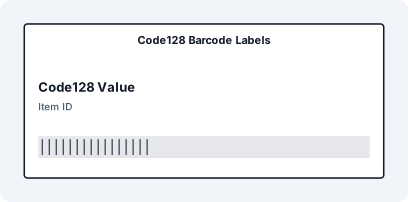
Code 128 barcode labels from Excel
Best first step for Excel barcode data, SKU columns, warehouse IDs, and scanner-ready batch labels.
- Maps Excel rows to one label each
- Barcode field is already placed
- Good fit for SKU and inventory workflows
Step-by-Step: Print Barcode Labels from Excel
- Prepare a clean Excel or CSV file with one row per label
- Import the data into LabelFlow Pro
- Map spreadsheet columns to text and barcode fields
- Select the correct barcode type: EAN-13, Code 128, or QR Code
- Adjust label size, margins, and preview output
- Print in batch to a standard or thermal printer
Example Workflow


Printing barcode labels from Excel is a common requirement for product labeling, inventory control, warehouse operations, and shipping workflows. The challenge is that Excel stores the data, but it does not produce production-ready barcode graphics on its own. A professional workflow converts your spreadsheet values into properly rendered barcodes and places them into a repeatable print layout.
Prepare Your Excel Data
Create a clean spreadsheet with one row per label and one column per variable, such as Product Name, SKU, Barcode Value, Price, or URL. Remove merged cells, blank header rows, and inconsistent formatting. For EAN-13, use exactly 13 digits. For Code 128, use a clean alphanumeric string. For QR Codes, use the full text or URL you want encoded.
Import the File into Your Label Workflow
Import the Excel or CSV file into LabelFlow Pro. The software reads your structured data and lets you bind each spreadsheet column to a text field, barcode field, or QR code field on the label. This removes the need for barcode fonts, Excel macros, or fragile Word mail merge workflows.
Select the Correct Barcode Symbology
Choose the barcode type that matches your use case: EAN-13 for retail barcodes, Code 128 for inventory and logistics labels, or QR Code for web links and extended data. Always verify that the encoded value matches the barcode standard and that the final printed barcode includes enough quiet zone for reliable scanning.
Add Human-Readable Text
Most professional barcode labels also display the raw value below the barcode. This helps operators verify the code visually and allows manual entry if a scanner is unavailable. Keep the text readable and aligned consistently across the whole batch.
Preview Size, Quiet Zone, and Layout
Before printing, check that the barcode is large enough for the intended scanner and printing method. Leave sufficient blank space around the barcode, confirm margins, and verify that the barcode is not being compressed or stretched by the layout. This is especially important on thermal printers and small product labels.
Print and Test Scan
Print a small test batch first. Scan several labels using the same type of scanner your operators or customers will use. If the code is difficult to read, increase barcode size, improve contrast, or adjust spacing before running the full batch.
Why Excel Alone Is Not Enough
- Excel stores barcode data but does not reliably generate production-ready barcodes
- Barcode fonts often create formatting problems and inconsistent results
- Word mail merge is slow and error-prone for batch barcode jobs
- Thermal printers require tighter control over layout, margins, and scaling
Common Barcode Label Mistakes
- Using the wrong number of digits for EAN-13
- Printing barcodes too small for the target scanner
- Leaving too little white space around the code
- Using Word mail merge for high-volume barcode runs
- Mixing inconsistent data formats inside the same spreadsheet column
FAQ
Can Excel generate barcode labels on its own?
Not reliably. Excel can store barcode values, but it does not natively generate production-ready EAN, QR Code, or Code 128 graphics. Most users need fonts, scripts, or a dedicated label workflow.
What is the best barcode type for labels from Excel?
EAN-13 is best for retail products, Code 128 is best for internal stock and logistics labels, and QR Code is best when you need to encode URLs or larger data strings.
Can I print barcode labels from Excel to a thermal printer?
Yes. Once the Excel data is mapped correctly, you can print barcode labels to thermal printers such as Zebra, Brother, and DYMO, provided the label size and printer settings are configured correctly.
Do I need barcode fonts?
No. A dedicated barcode workflow generates barcode graphics directly, which is more reliable than depending on fonts or spreadsheet hacks.